 Inviteroll
Wedding Photo Sharing With a QR Code: How to Collect Every Guest's Photos
Set up a shared album, print the QR code and get the photos your photographer didn't take
Updated November 2, 2026 · 6 min read

Short answer: create a shared photo album for your wedding, print its QR code on table cards or a sign, and guests scan it with their phone camera to add photos straight from the browser. Every picture lands in one place, so you do not have to chase dozens of chats and cloud links after the wedding.
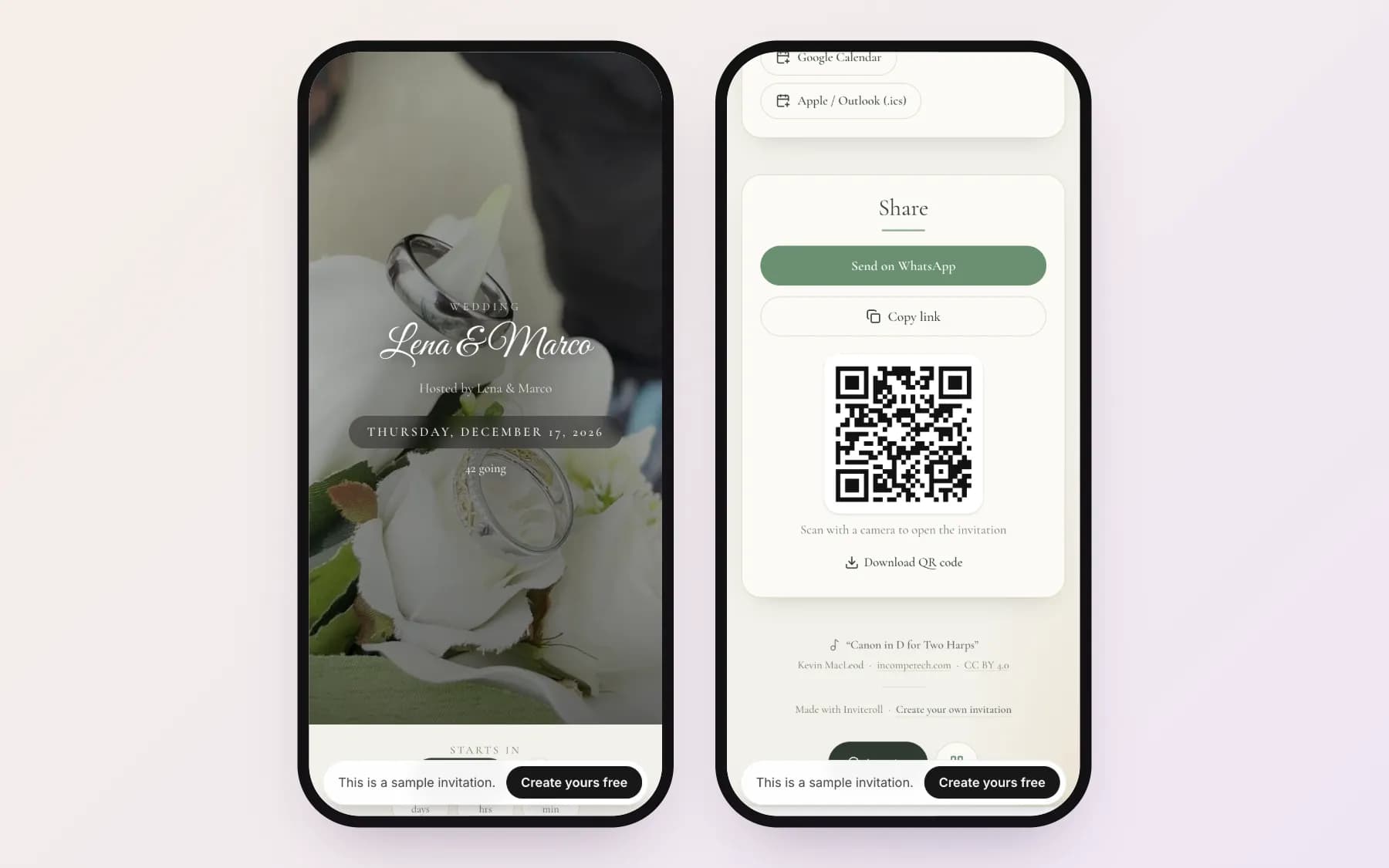
This guide explains how wedding photo sharing with a QR code works, what to look for in a tool (no app for guests, privacy, limits), where to put the code at the venue, and wording you can print next to it. The setup examples use Inviteroll, where the photo wall is part of the wedding invitation itself — open a sample wedding invitation to see it.
How QR code photo sharing works
A QR code is simply a web address that a phone camera can read. For photo sharing, it points to a page where guests pick photos from their camera roll and upload them. Everything they share goes into one album that you, the couple, control.
On Inviteroll the album is the photo wall on your invitation page. Guests who received a personal invitation link can upload from that link. Guests who scan the QR code at the venue open the invitation, reply with their name, and can then add photos — so the same code works for invited guests, plus-ones and anyone who lost their link.
Why collect guest photos at all
Your photographer covers the ceremony, the portraits and the first dance. Guests see everything else: the table jokes, the kids on the dance floor, the grandparents arriving, the late-night moments after the photographer has gone home. Those pictures usually end up scattered across WhatsApp groups, private cloud albums and phones nobody remembers to check.
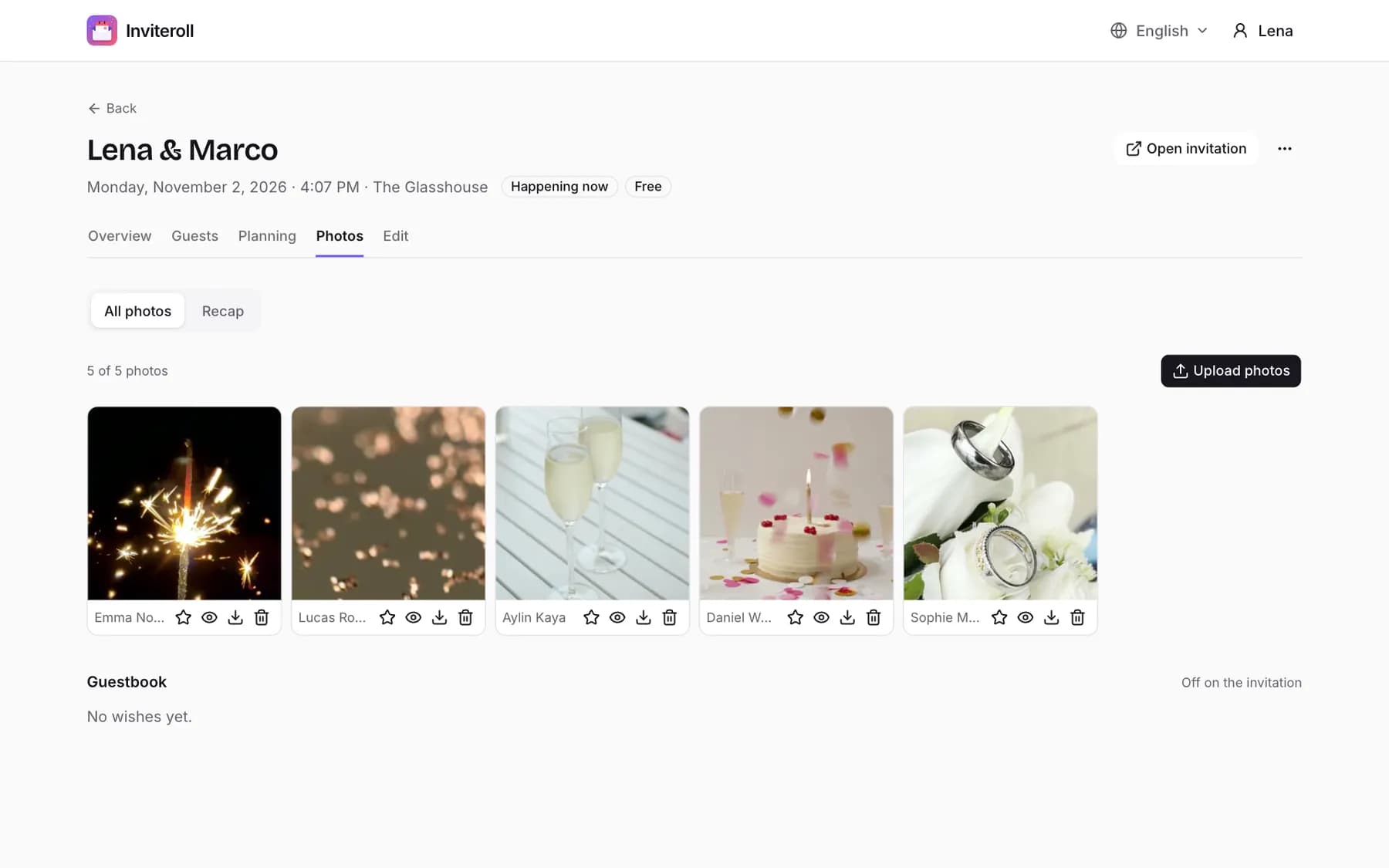
A shared album with a QR code gives guests one obvious place to put them, while the memories are fresh — and gives you a single collection to download, feature on the invitation or turn into a recap story.
What to look for in a wedding photo sharing tool
Most guests will scan the code once, upload a few photos and put the phone away. The tool has to make that moment effortless and keep your album private.
- No app and no account for guests — uploading should work in the phone's browser.
- Privacy: only people with the link can see the album, and location data (GPS) is removed from every photo.
- Control: you can feature the best shots, hide or delete any photo, and block a guest if needed.
- Choice of visibility: guests see everyone's photos, or only the host sees the full album.
- Clear limits: how many photos per event and per guest, and how long the album stays open.
- Easy export: download photos and turn the best ones into a story or video to share.
Setting up a QR code for your wedding photos
With Inviteroll, the photo wall is switched on in the invitation settings ("Guests can share photos"). To let guests use the QR code at the venue without a personal link, also turn on "Anyone with the event link can RSVP" — guests then reply with their name in a few seconds before uploading.
Make sure the Share & QR section is shown on the invitation, open your event link, and use Download QR code to save the image for printing. Guests can start uploading one hour before the ceremony begins and keep adding photos for seven days after the wedding.
Where to put the QR code at the venue
Put the code where guests naturally pause with their phone in hand. Two or three spots are better than one big sign by the door.
- Table cards or menus — one per table, at eye level.
- The bar and the dessert table, where people queue.
- The guestbook or welcome sign at the entrance.
- A screen or the DJ's announcement during the evening ("Scan the code on your table and add your photos!").
- The thank-you message after the wedding, for photos people forgot to share.
Wording to print next to the QR code
Keep it short and tell guests exactly what will happen when they scan.
Snap, scan, share! Scan the code to add your photos to our wedding album.
Help us see the day through your eyes. Scan the code with your phone camera and share your photos with us. No app needed.
You are our photographers tonight! Scan the code and upload your best shots — the more, the merrier.
Don't forget: scan the QR code on your table to share your photos with Emily and Daniel. You can keep adding them all week!
Thank you for celebrating with us! If you have photos from the day, you can still add them to our album until next Sunday:
Privacy, limits and what happens after the wedding
On Inviteroll, photos are only visible to people with a link to your event. Location data is removed from every upload, any guest can report a photo (it is hidden immediately and reviewed within 24 hours), and you can hide, delete or download each photo. You decide whether guests see the whole wall or only their own uploads.
The free plan includes 5 photos for one event, which is enough to try it out. A wedding usually needs the one-time Plus upgrade for that event: up to 300 guest photos (10 per guest), 300 guests and no watermark. Photos are stored at a size optimised for phones and screens; your photographer's files remain your full-resolution archive. After the wedding you can turn your featured photos into a 1080×1920 recap story or video for Instagram and WhatsApp.
If you have not made your invitation yet, start with our guide to creating a digital wedding invitation and our wedding invitation wording. To compare tools, see our overview of Evite alternatives.
How to collect wedding photos from guests with a QR code
- 1
Create your wedding invitation
Set up the event with date, time and venue. The photo wall is part of the invitation page.
- 2
Turn on photo sharing
Enable "Guests can share photos" and choose whether guests see everyone's photos or only their own.
- 3
Allow guests without a personal link
Turn on "Anyone with the event link can RSVP" so guests who scan the code can reply with their name and upload.
- 4
Download and print the QR code
Open your event link, use Download QR code in the Share & QR section, and print it on table cards and a sign.
- 5
Tell guests during the event
Ask the DJ or host to mention the code once, and include the link in your thank-you message.
- 6
Curate and share
Feature the best shots, hide anything you don't want shown, and create a recap story from your favourites.
Collect your guests' wedding photos in one place
Your invitation, RSVPs and a shared photo wall with a printable QR code — no app for guests.
Create your invitationFrequently asked questions
Do guests need an app to upload wedding photos with a QR code?
Not with Inviteroll. Scanning the code opens the invitation in the phone's browser; guests reply with their name and upload photos without installing anything or creating an account.
Can anyone who finds the QR code see our photos?
Only people with the link can open the album. You choose whether guests see all photos or only the ones they shared, and you can hide or delete any photo. Location data is removed from every upload.
How long can guests upload photos?
On Inviteroll, uploads open one hour before the event starts and close seven days after it ends, so guests can share photos the next morning too.
How many photos can guests share?
The free plan allows 5 photos for one event. With the one-time Plus upgrade, a wedding can collect up to 300 photos, with up to 10 per guest.
Can I download all the guest photos?
Yes, you can download each photo from your dashboard and turn featured photos into a 1080×1920 story or video recap.